

SEO


Last updated: 21 July 2026
WordPress gives you the controls needed to build an SEO-friendly website. It does not make the website optimised for you.WordPress gives you most of the tools needed to build an SEO-friendly website, but installing WordPress or adding an SEO plugin does not mean your site is optimised.
To improve SEO on WordPress, you need to make sure Google can crawl and index the right pages, configure your website properly, publish useful content, create a logical site structure and monitor performance in Google Search Console.
I have worked on WordPress websites for Irish SMEs, ecommerce businesses and service providers for many years. During a WordPress SEO audit, the problems I find are rarely caused by one missing keyword or one red light in Yoast. They tend to come from a combination of technical settings, weak page structure, overlapping content, unnecessary URLs and unclear targeting.
This guide explains the WordPress SEO process I use, including where Yoast helps, where it does not and which recommendations I would ignore.
Start with these ten checks:
Make sure search engines are allowed to index the website.
Use a clear permalink structure.
Install and configure one SEO plugin.
Create unique title tags and meta descriptions.
Check that the XML sitemap contains the correct URLs.
Connect the website to Google Search Console.
Improve the content, page structure and internal linking.
Fix duplicate URLs, broken links and redirect problems.
Improve page speed and mobile usability.
Monitor rankings, clicks and conversions.
You do not need to complete every advanced SEO task immediately. Start by removing anything that prevents Google from accessing, understanding or correctly indexing your important pages.
One of the first checks I make during a WordPress SEO audit is whether search engines are allowed to index the website.
WordPress has a setting that can discourage search engines from indexing the site. Developers often enable it while building a website and occasionally forget to remove it before launch.
Go to:
Settings > Reading
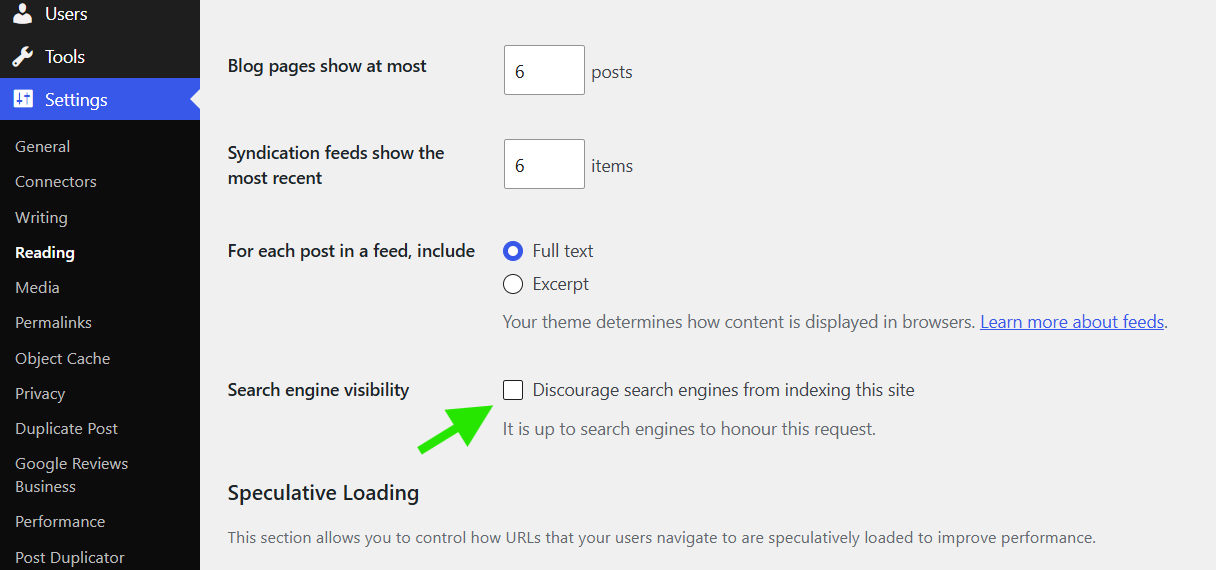
Make sure Discourage search engines from indexing this site is not selected.
WordPress Search Engine Visibility setting:
This setting is only the first check. A page can also be blocked or excluded through:
A noindex instruction added by an SEO plugin
The robots.txt file
A canonical tag pointing to another URL
Password protection
A redirect
Server errors
Plugin or theme settings
Use the URL Inspection tool in Google Search Console to check important pages individually.
Google Search Console URL Inspection report:
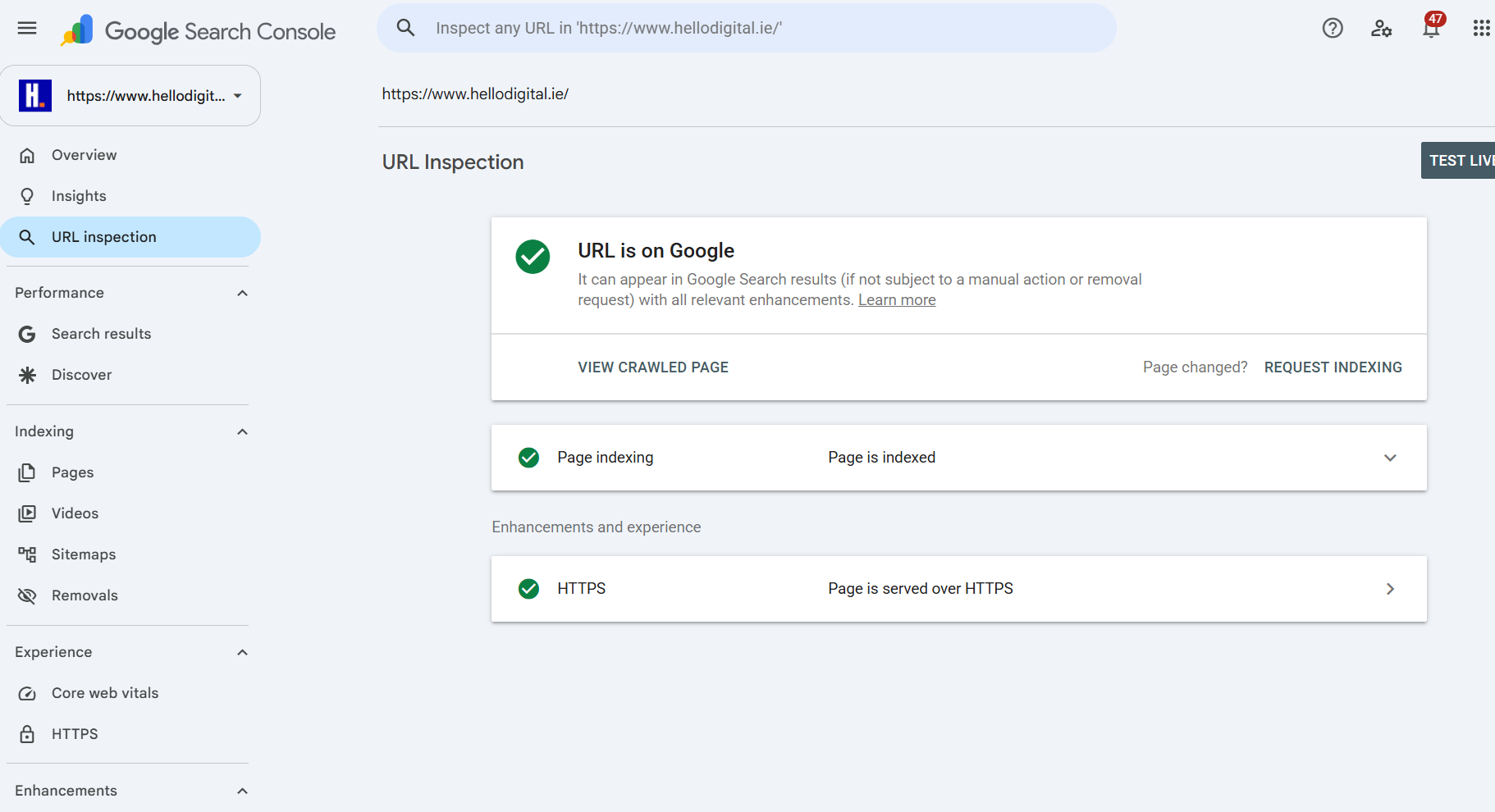
The URL Inspection report can show whether Google has indexed the page, which canonical URL Google selected and whether any crawling or indexing problems were detected.
My advice is to check the homepage, main service pages, important category pages and several blog posts. Do not assume that because one URL is indexed, the rest of the site is configured correctly.
WordPress allows you to control how URLs are structured.
For most business websites, the Post name option provides a clear and manageable structure:
Settings > Permalinks > Post name
This creates URLs such as:
yourwebsite.ie/wordpress-seo-guide/
rather than:
yourwebsite.ie/?p=123
Keep URLs concise and descriptive. Remove unnecessary words, dates and repeated folder names where possible.
Do not change established URLs just to make them marginally shorter. Changing a URL creates additional work and risk. You must add a 301 redirect, update internal links, update the sitemap and allow Google time to process the change.
A technically imperfect URL that already ranks and attracts links can be more valuable than a cleaner new URL.
An SEO plugin makes it easier to manage:
Title tags
Meta descriptions
Canonical tags
Indexing settings
XML sitemaps
Social sharing previews
Schema markup
Breadcrumb settings
Yoast SEO, Rank Math and All in One SEO can all handle the main requirements.
In my experience, the plugin matters less than how well it is configured and whether the person using it understands the settings.
Do not install multiple SEO plugins at the same time. This can result in duplicate metadata, conflicting canonical tags, duplicate schema or multiple XML sitemaps.
For many small business websites, Yoast SEO is a practical choice. It provides a familiar interface and handles the main technical controls without requiring extensive configuration.
After installing and activating Yoast, complete the initial configuration.
Check the following:
Website name
Organisation or person details
Business logo
Social profiles
Search appearance settings
Content-type indexing settings
Category and tag settings
Author archive settings
XML sitemap
The correct settings depend on the website.
For example, an author archive can be useful on a publication with several active writers. On a small business website with one author, the author archive may contain the same articles as the main blog. In that case, it can create another low-value URL rather than helping users.
Yoast uses coloured indicators to highlight possible improvements. These checks can be useful, but they are not Google ranking scores.
A green light does not mean a page will rank. An orange or red light does not mean it cannot rank.
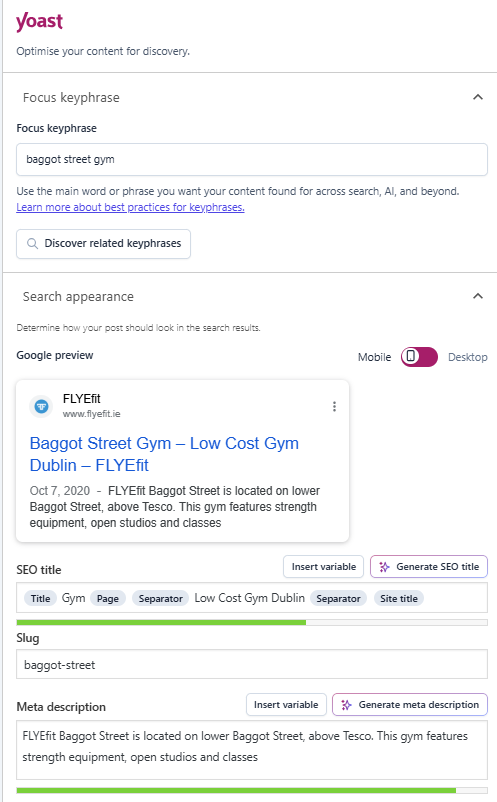
The focus keyphrase field is also not sent to Google. It tells Yoast which phrase to use when evaluating the page. Google evaluates the actual page, its meaning, its quality and how well it satisfies the search.
I use Yoast primarily to manage:
The title tag
The meta description
The canonical URL
Indexation settings
The XML sitemap
Search-result previews
Basic content checks
I would not rewrite a clear and accurate paragraph solely because Yoast dislikes the sentence length, passive voice or number of transition words.
I would also ignore a recommendation to add the exact keyphrase repeatedly when doing so makes the writing awkward.
Yoast may suggest changes that are unnecessary or counterproductive.
Examples include:
Adding the exact keyphrase to every heading
Headings should describe their sections clearly. Variations and related language are often more natural and useful than repeating the same phrase.
Using the keyphrase in every image alt attribute
Alt text should describe the purpose or content of the image for people using screen readers. Decorative images should have empty alt attributes. Keyword stuffing alt text does not improve accessibility or content quality.
Changing natural writing to satisfy readability checks
Yoast applies standardised rules. Technical or professional subjects sometimes require longer sentences or specialist terminology. Clarity matters more than achieving a perfect plugin score.
Forcing the keyphrase into the introduction
The topic should be clear near the beginning, but the exact phrase does not need to be inserted unnaturally.
Treating the meta description warning as a ranking problem
A good meta description can improve how a result is presented and encourage clicks, but Google may rewrite it. The description should be accurate and persuasive rather than written to satisfy a plugin counter.
My rule is simple: use Yoast as a checklist, not as the final decision-maker.
Yoast title, meta description and focus keyphrase fields:
Every important page should have a distinct reason to exist.
Before optimising a page, identify:
Who the page is for
What question or need it addresses
What action the visitor should take
Which search intent it serves
How it differs from other pages on the site
A common problem I find is several pages targeting minor variations of the same query. This can leave Google trying to decide which URL represents the topic.
I recently reviewed three articles on my own website:
How to improve SEO on WordPress
How to add SEO to WordPress
How to use Yoast SEO
Although the titles were different, much of the content and search intent overlapped. Improving all three separately would have preserved the duplication. The better approach was to combine the useful material into one definitive WordPress SEO guide and redirect the weaker URLs.
This is an important content principle: do not publish a separate article simply because a keyword variation exists.
Each page should offer a meaningfully different answer, audience, format or purpose.
The title tag, H1 and meta description have different roles.
The title tag is the page title that Google may show in search results. It should:
Describe the page accurately
Include the primary topic naturally
Distinguish the page from competing results
Avoid unnecessary repetition
Be written for a potential visitor, not just a search engine
The H1 is the main visible heading on the page. In most cases, use one clear H1.
The H1 and title tag can be similar, but they do not have to be identical.
The meta description should explain what the user will find and why the page is relevant.
It is not necessary to force every secondary keyword into the description. Write a concise summary that earns the click without overstating what the page provides.
Good WordPress SEO is not based on inserting a keyword a fixed number of times.
The content needs to answer the search properly and demonstrate that the author understands the subject.
Useful content may include:
A direct answer
Practical instructions
Original examples
Professional judgement
Common mistakes
Situations where the standard advice changes
A clear next step
The strongest content often explains not only what to do, but when the usual advice does not apply. That is where professional experience becomes useful.
AI can help with WordPress SEO content, but it should not replace research, judgement or first-hand experience.
I use AI to organise notes, compare content structures, identify possible overlap and improve the clarity of an initial draft. The finished page still needs expert review.
AI-generated content becomes weak when it repeats generic information, makes unsupported claims or is published without proper fact-checking.
For this article, AI helped organise the material. It could not provide my experience of auditing WordPress websites, deciding which archive pages should be indexed or recognising when a Yoast recommendation should be ignored. Those are the elements that make the guide genuinely useful.
Internal links help users move between related pages and help search engines understand how your content is organised.
Link from relevant articles to:
Related guides
Important service pages
Category pages
Supporting resources
Contact or enquiry pages where appropriate
Use descriptive anchor text. A link labelled “WordPress SEO audit” gives more context than “click here”.
Do not add links simply to reach a target number. Every link should help the reader or explain the relationship between pages.
When consolidating articles, update all internal links so they point directly to the final destination. Do not leave internal links pointing through redirects.
I also avoid forcing keyword-rich links into every footer or sitewide template. Sitewide links should support navigation, not function as a substitute for a considered internal-linking strategy.
WordPress can generate many archive URLs automatically.
These can include:
Category pages
Tag pages
Author archives
Date archives
Search-result pages
Paginated blog pages
Media attachment pages
This does not mean that all archive pages should be removed. A well-developed category page can help users browse a subject and may have genuine search value.
The problem is allowing hundreds of thin, duplicate or abandoned archive pages to be indexed.
My preferred approach is:
Use a limited number of meaningful categories.
Assign posts to the most relevant category.
Create tags only when they will group several useful articles.
Remove unused or one-off tags.
Add useful introductory copy to important category pages.
Noindex archive types that serve no search purpose.
Check that attachment pages do not create unnecessary indexable URLs.
The goal is not to minimise the number of URLs at all costs. It is to make sure every indexable URL has a purpose.
Most WordPress SEO plugins generate an XML sitemap automatically.
With Yoast, the sitemap is often available at:
yourwebsite.ie/sitemap_index.xml
Submit it through:
Google Search Console > Sitemaps
An XML sitemap helps search engines discover important URLs. It does not guarantee that every URL will be indexed or ranked.
Check that the sitemap contains:
Canonical URLs
Indexable pages
Important posts
Relevant categories
Products and product categories where applicable
It should not contain:
Redirected URLs
noindex pages
Deleted pages
Duplicate URL versions
Internal search results
Low-value archives you have chosen not to index
I regularly find that a sitemap is technically working but contains URLs that should never have been submitted. The quality of the URLs matters more than simply having a sitemap.
A 404 response is not automatically an SEO problem. It is the correct response when a page has been removed and there is no suitable replacement.
Add a 301 redirect when:
A page has moved
A URL has changed
Two pages have been consolidated
A removed page has a clear equivalent
The old URL has backlinks, traffic or continuing user demand
Do not redirect every deleted page to the homepage. An irrelevant redirect creates a poor experience and may be treated as a soft 404.
When adding redirects:
Redirect the old URL directly to the most relevant destination.
Avoid redirect chains.
Update internal links.
Remove the old URL from the sitemap.
Check that the destination is indexable.
Test the redirect after implementation.
Google Search Console can identify some missing pages, but a full website crawl is more effective for finding broken internal links.
A canonical tag indicates which URL represents the main version of a page.
WordPress websites can create duplicate or near-duplicate URLs through:
URL parameters
HTTP and HTTPS versions
WWW and non-WWW versions
Print or AMP versions
Category paths
Pagination
Filtered product pages
Tracking parameters
Attachment pages
Your SEO plugin can add canonical tags, but that does not remove the need to check them.
Inspect the source code or use a crawler to confirm that important pages contain a self-referencing canonical, unless another URL is intentionally preferred.
Also check Google Search Console to see whether Google selected a different canonical. When it does, investigate why rather than automatically assuming Google made a mistake.
Understanding WordPress page speed helps you prioritise the changes that matter.
WordPress performance problems often come from the combined effect of:
Large images
An unnecessarily heavy theme
Too many or poorly performing plugins
Multiple tracking scripts
Page builders
External fonts
Chat widgets
Advertising scripts
Poor hosting
Missing caching
Unused CSS and JavaScript
Start with the largest practical issues.
Resize images before uploading them. Do not upload a 4,000-pixel image when it will be displayed at 800 pixels.
Use a suitable modern format, compress the file and provide an appropriate width and height.
Alt text should describe meaningful images. Decorative images should use an empty alt attribute.
The number of plugins is not the only issue. One poorly built plugin can have a larger effect than ten efficient ones.
Remove plugins that are inactive, duplicated or no longer required. Check whether several plugins are performing the same function.
Caching can improve loading times, but settings should be tested. Aggressive minification or script delays can break layouts, forms, ecommerce features and tracking.
A visually impressive design can still create excessive code and slow mobile performance.
Review the actual templates, scripts and components being loaded rather than assuming the theme is fast because it is marketed as SEO-friendly.
Use PageSpeed Insights and real Core Web Vitals data as diagnostic tools. Do not damage the website trying to achieve a perfect laboratory score.
Google primarily evaluates the mobile version of a website.
Check more than whether the layout technically responds to the screen size.
Review:
Font size
Button size
Menu usability
Forms
Cookie banners
Pop-ups
Product filters
Tables
Images
Core content visibility
Loading speed
Calls to action
I frequently see desktop pages that look polished but become difficult to use on mobile because menus, filters, buttons or pop-ups cover important content.
Test the actual website on several screen sizes. Do not rely solely on the desktop browser preview.
Breadcrumbs can help users understand where they are within a website.
They are particularly useful for:
Ecommerce websites
Large service websites
Resource libraries
Websites with several category levels
The breadcrumb structure should reflect the real site hierarchy.
Adding breadcrumbs does not fix a confusing website structure. The navigation, URL structure, internal links and categories still need to make sense.
Your theme may already include breadcrumbs. Check this before enabling another version through Yoast, as duplicate breadcrumbs can appear when both the theme and plugin output them.
SEO plugins can add basic structured data for articles, organisations, people and breadcrumbs.
Additional schema may be useful for certain content types, including:
Products
Local businesses
Events
Courses
Job listings
Videos
Recipes
Only use structured data that accurately represents visible page content.
Test important templates rather than checking only the homepage.
Adding schema does not make a weak page authoritative, and more schema is not automatically better. Incorrect or duplicated markup can make the implementation harder to maintain.
Backlinks and brand mentions are not WordPress settings, but they can influence organic visibility.
Focus on links that exist for a legitimate reason, such as:
Industry organisations
Professional memberships
Local business partnerships
Supplier or manufacturer websites
Original research
Useful tools and resources
Expert commentary
Digital PR
Relevant business directories
I would not recommend exchanging links indiscriminately, adding links to unrelated forums or submitting a business to hundreds of low-quality directories.
I would also not disavow every suspicious-looking backlink. Most websites accumulate irrelevant or automated links over time. Investigate whether there is evidence of manipulative link building before taking action.
Use Google Search Console to monitor SEO performance, including:
Clicks
Impressions
Click-through rate
Queries
Landing pages
Indexation
Core Web Vitals
Manual actions
Security issues
Use GA4 or another analytics platform to monitor:
Enquiries
Sales
Bookings
Calls
Downloads
Qualified visits
Assisted conversions
Do not judge performance solely by the site-wide average position in Search Console. Average position can change because a page starts appearing for additional low-ranking queries.
When investigating a ranking decline, compare the same page and query combinations across both periods. Also separate branded searches from non-branded searches and commercial pages from informational articles.
Traffic matters, but the final measure is whether organic search supports the business.
The most common issues I encounter include:
The site still discourages search engines
Several SEO plugins are installed
Yoast indicators are treated as ranking scores
Archive pages create low-value URLs
Several articles target the same intent
Deleted pages redirect to the homepage
Internal links point through redirects
Images are unnecessarily large
Sitemaps contain redirected or non-indexable URLs
AI content is published without expert review
Correcting these problems often provides more value than adding another plugin or publishing another generic article.
For a new WordPress website, I would complete the work in this order:
Confirm the site structure and main pages.
Set the preferred domain, HTTPS version and permalinks.
Install and configure one SEO plugin.
Configure indexing, canonical tags and metadata.
Check mobile templates and page speed.
Add internal links, breadcrumbs and the XML sitemap.
Connect Search Console and analytics.
Crawl and test the website before and after launch.
SEO should be included in the website build. It is harder and more expensive to repair the structure after hundreds of pages, products or articles have been published.
Yes. WordPress provides flexible URLs, editable content, metadata controls and extensive plugin support. The final SEO performance still depends on the theme, hosting, configuration, content and implementation.
Yoast SEO, Rank Math and All in One SEO can all manage the main requirements. Choose one plugin and configure it properly. Do not choose based solely on the number of advertised features.
Yoast helps you manage SEO settings and identify possible content improvements. Installing it does not directly improve rankings. The website and content still need to satisfy the search and compete with other results.
No. Use the indicators as prompts. Ignore recommendations that make the writing repetitive, unnatural or less accurate.
Monitor Search Console and conversions regularly. Review important pages when performance changes, information becomes outdated, services change or several pages begin competing for the same topic.
Yes, but the finished content should be fact-checked, edited and strengthened with original knowledge, examples and professional judgement. Do not publish generic AI output simply because it targets a keyword.
WordPress provides the tools, but the settings, site structure and content still need to work together.
I help Irish businesses identify technical SEO problems, improve WordPress content, consolidate overlapping pages and create a clearer strategy for organic search.
Whether you are launching a new website or trying to recover lost visibility, the first step is understanding what is preventing the site from performing.
Book a free consultation to discuss your WordPress SEO.